
Search Console already tells you which searches your pages appear for and how often people click. Search Console content optimisation means using that data to choose which pages to edit, confirming Google can index them, changing them to match the real queries, and measuring the result. Run as a loop, it replaces guesswork with evidence.
Google describes Search Console as a "free service offered by Google that helps you monitor, maintain, and troubleshoot your site's presence in Google Search results" (About Search Console). This guide shows how to turn that monitoring into edits: the five steps, the metrics worth watching, a symptom-to-fix playbook and where each report lives.
The 5-step loop at a glance
Each pass through the loop starts from data and ends with a measured result.
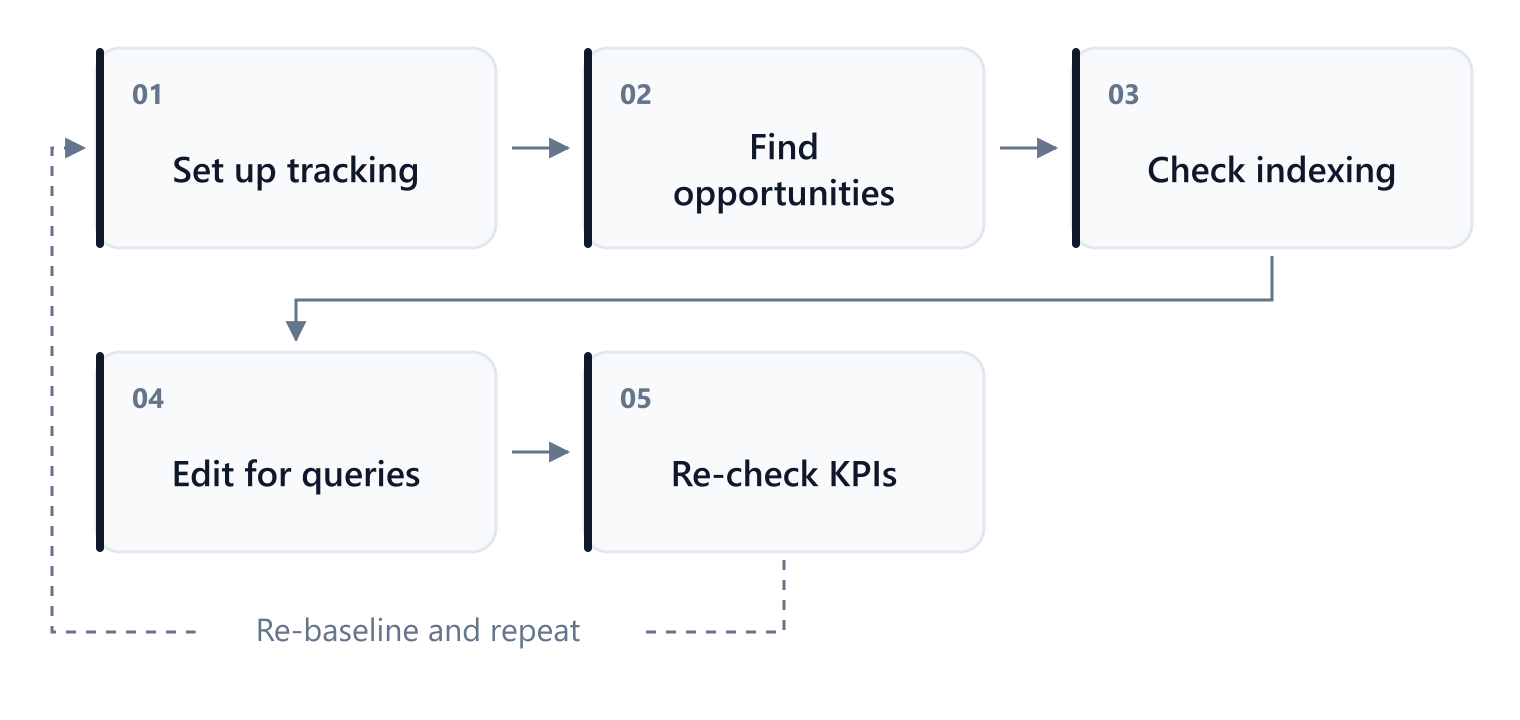
- Set up tracking. Record baseline numbers for each page and query you plan to change.
- Find opportunities in the Performance report: pages with many impressions but few clicks.
- Check indexing for the exact URL with the URL Inspection tool before you edit anything.
- Edit for the queries: the title, meta description, headings and the answer itself.
- Re-check KPIs after a fixed window and compare against the baseline. Then start again.
Average position is the metric most teams watch, but it moves last. Impressions, clicks and click-through rate (CTR) show sooner whether your page matches what people searched for.
Which metrics predict real lift
Read impressions and clicks together, and treat CTR as a measure of how well your search result matches the searcher's intent. The Performance report lets you break all four metrics down by query, page, country, device and date, which is what makes a before-and-after comparison possible.
| Signal | What it usually means | What to change |
|---|---|---|
| Impressions rising, clicks flat | Google shows the page more often, but the result doesn't persuade people to click | Title and meta description |
| CTR falling after an edit | The new title or description promises less than the old one | Restore the specific wording searchers responded to |
| Clicks rising | Both the result and the page match the query | Expand the sections that answer it |
| Position improving slowly | Relevance is building; position lags behind the other signals | Keep edits focused and don't rewrite again yet |
| Impressions dropping on an indexed page | Another URL, often one of your own, is taking the query | Check for cannibalisation and see which page now ranks |
How to run the loop in Search Console
Step 1: Set up tracking
Create a sheet with one row per page and query: URL, query, device, country, baseline impressions, clicks, CTR and position, your target, the date you edited and the status. Use the last 28 days as the baseline so every loop compares like with like.
If your site barely has impressions yet, the loop has little to work with. Start by getting your first 1,000 organic visitors, then come back to it.
Step 2: Find opportunities in the Performance report
- Open Search Console and go to Performance → Search results.
- Set the date range to the last 28 days and turn on all four metrics: clicks, impressions, CTR and average position.
- Open the Pages tab and sort by impressions. Pages near the top with a low CTR are your first candidates.
- Click a candidate page, then open the Queries tab. These are the searches the page actually appears for, and the wording your edit should answer.
- Export the rows into your sheet. For large sites or regular reporting, the Search Console API returns the same data programmatically.
Pages averaging between about position 4 and 20 are usually the easiest wins. Google already considers them relevant, so a closer match to the query can move them onto page one or higher within it.
Step 3: Check indexing before you edit
Paste the exact URL from the Performance report into the URL Inspection tool and check three things:
- Is the URL on Google? If it isn't, better content won't change your clicks. Fix indexing first.
- The Google-selected canonical. If Google chose a different URL as canonical, that is the page appearing in search. Edit that page, or fix your canonical signals; Google's guide to canonical URLs explains how.
- The URL variant. A trailing slash, a parameter or http versus https makes a different URL to Google.
For indexing problems across the whole site, the Page indexing report lists every URL that isn't indexed and the reason Google gives.
Step 4: Edit for the queries
Close the gap between the queries you found in Step 2 and what the page leads with:
- Title. Use the main query's wording and make one clear promise. Google's guidance on title links explains how it chooses the title it shows.
- Meta description. Describe what the page actually delivers. Google may use it as the snippet; see its meta description guidance.
- Headings and the first screen. Answer the main query in the opening paragraph, and make sure the H1 matches the title's promise.
- Missing subtopics. If the queries ask about something the page doesn't cover, add a section for it.
- Internal links. Link to the page from related pages that already earn impressions, using descriptive anchor text.
Once the changes are live, run Test live URL in URL Inspection to confirm Google can fetch the new version, then select Request indexing. For many URLs at once, see Google's guide to asking Google to recrawl your site.
Step 5: Re-check KPIs after a fixed window
Wait until URL Inspection shows that Google has crawled the new version, then give it time to collect data. Comparing the 28 days after the edit with the 28 days before is a fair test for most pages. In the Performance report, use Date → Compare to put the two periods side by side for the same page and queries.
Decide in advance what counts as a hit, for example CTR up by a third on the target queries while impressions hold steady. If it's a miss, the playbook below shows where to look next.
If nothing changes for weeks, open the Crawl Stats report (Settings → Crawl stats) and look for slow responses or errors that may be holding back crawling.
Symptom-to-action playbook
Match what you see in Search Console to one change, and confirm indexing before you judge the result. Changing one thing at a time tells you which edit made the difference.
High impressions, low CTR
| What you see | What to change | How to confirm it worked |
|---|---|---|
| High impressions and low CTR across a group of related queries | Rewrite the title in the queries' own wording, with one clear promise | CTR rises for the same queries in the compared period |
| Low CTR mostly on mobile | Shorten the title so the key words come first, and tighten the opening paragraph | Filter by device and compare mobile CTR before and after |
| Good position (1–5) but low CTR | Rewrite the meta description around what the page actually delivers | Clicks rise while impressions hold |
| CTR dropped after an edit | Restore the specific wording the old title or description used | Compare the period before the edit with the period after |
When a CTR fix doesn't work, it's usually one of these:
- Google shows a different title from yours. Google rewrites titles that don't reflect the page. Align the title with the H1 and the page's main topic.
- CTR improved but clicks didn't. Impressions fell at the same time. Check whether another of your pages has started appearing for the same queries.
- You edited the wrong URL variant. Inspect the exact URL listed in the Performance report.
Low clicks, indexing problems and cannibalisation
Content edits can't help a page Google can't index, and two of your own pages competing for one query split the clicks between them. Work through these in order:
- Check the property type. A domain property covers every subdomain and protocol; a URL-prefix property covers only the prefix you entered. Make sure the page you're editing sits inside the property you're reading.
- Find the indexing reason. Open the Page indexing report, find the page, then inspect it with URL Inspection to see the exact reason.
- Remove the blocker. Common causes are a robots.txt rule, a stray noindex tag, or a canonical or redirect pointing somewhere else. Then run Test live URL and request indexing.
- Resolve cannibalisation. If several of your URLs appear for the same queries, pick the strongest one to own the topic, merge the others into it with 301 redirects and point your internal links at it.
- Check for manual actions. The Manual actions report shows whether Google has taken action against the site. Resolve that before anything else.
When an indexing fix doesn't work, it's usually one of these:
- You fixed the staging site. Inspect the production URL instead.
- "Blocked by robots.txt" or "Excluded by 'noindex' tag" persists. The live page still serves the directive. Check the page source, then request indexing again.
- Clicks fell after a redesign. The page may still answer the query, but no longer on the first screen. Move the answer back up.
Where to find each report
- Performance report (Performance → Search results): clicks, impressions, CTR and position by query, page, country and device.
- URL Inspection tool (the search bar at the top): index status, the Google-selected canonical, the live test and indexing requests.
- Page indexing report (Indexing → Pages): every URL that isn't indexed, grouped by reason.
- Crawl Stats report (Settings → Crawl stats): crawl requests, response times and errors over time.
- Manual actions report (Security & Manual Actions → Manual actions): any action Google has taken against the site.
- Search Console API: the same Performance data, exported programmatically. It's free within its usage limits.
FAQ
Why does my page get impressions but no clicks?
Google considers the page relevant enough to show, but the result doesn't persuade people to click. Check the average position first. If the page sits below the first page, few searchers reach it, so improve how well the content answers the query. If it's already on page one, rewrite the title and meta description to match the queries it appears for.
How do I confirm which URL version Google indexed?
Paste the exact URL into the URL Inspection tool. It shows whether that URL is indexed and which URL Google selected as canonical. If the Google-selected canonical is a different URL, that's the version appearing in search: edit it, or fix your canonical tags so Google picks the page you want.
What if my page still isn't indexed after I edit it?
Editing doesn't trigger indexing on its own. Run Test live URL in URL Inspection to check that Google can fetch the page and that nothing blocks it, then select Request indexing. If it's still not indexed after a few weeks, the Page indexing report shows the reason Google gives. "Crawled – currently not indexed" usually means Google didn't consider the page valuable enough yet, so strengthen the content and the internal links pointing to it.
Can I use Search Console for keyword research?
Yes, for searches you already appear for. The Queries tab shows the real searches your pages were shown for, including ones you never targeted. Group related queries by intent and map each group to one page. Groups that no page answers well are candidates for new articles. Search Console won't show volume for searches you don't appear for yet.
How long should I wait before judging a change?
Wait until URL Inspection shows Google has crawled the new version, then compare at least 28 days after the edit with the 28 days before. Pages with few impressions need longer windows before a difference means anything.
Key takeaways
- Run it as a loop: set a baseline, find opportunities, check indexing, edit, re-check, then repeat.
- Start from impressions and CTR, not position. Position moves last.
- Check indexing before you edit. A page Google can't index won't benefit from better content.
- Edit what searchers see first: the title, the description and the opening paragraph.
- Measure on equal windows with the Compare view, and decide what counts as success before you start.